
If you've watched a creator's carousel rack up thousands of saves and wondered how they make theirs look so clean while yours looks thrown together, the difference usually isn't talent — it's process. This guide covers exactly how to make a TikTok carousel in 2026: what to prepare, a step-by-step build, and the best practices that separate a carousel people finish from one they scroll past.
A TikTok carousel is a single post made of multiple still images that viewers swipe through instead of a video. Done well, it's one of the highest-reach, highest-save formats on the platform. Done in TikTok's native on-phone editor, it's a bottleneck. Here's the full workflow top creators actually use.
What is a TikTok carousel (and why it beats video for saves)?
A carousel — sometimes called photo mode or a picture slideshow — gives each slide its own moment of attention. That structure is built for storytelling: a hook on slide one, a payoff by the last slide, and a small cliffhanger on every slide in between that pulls the viewer to swipe.
Two things make carousels punch above their weight in the algorithm:
- Every swipe is engagement. A video plays passively; a carousel asks the viewer to act on every slide. More interactions per post is a strong positive signal.
- They get saved. Tips, lists, tutorials, and before-and-afters are things people want to come back to. A save is one of the heaviest-weighted signals on TikTok, and reference-style carousels earn them consistently.
There's a practical upside too: carousels are far cheaper to produce than video. No filming, no lighting, no editing timeline — just images and text. That means you can post consistently without burning out, and consistency is what actually compounds on TikTok. A creator shipping three solid carousels a week will almost always out-grow one posting a single over-produced video, because the algorithm rewards volume of engaging posts, not production budget.
That's why creators posting to grow — not just to post — lean on carousels for evergreen, save-worthy content.
What you need before you start
Five minutes of prep saves you from a carousel that stalls halfway through:
- A single, specific idea. "5 mistakes new creators make" beats "creator tips." One idea, one carousel.
- A hook for slide one. This is the only slide most people see before deciding to swipe. Write it first.
- A background idea for each slide. You don't need photo files ready — PXT pulls backdrops straight from Unsplash inside the editor, or you can paste image URLs. Just know roughly what each of your 6–10 slides should show.
- Short text for each slide. One idea per slide, a few words each. Carousels are skimmed, not read.
- A call to action. How the last slide asks for the save, the comment, or the click.
Have those ready and the build itself takes minutes.
Step-by-step: making a carousel with PXT Creator Studio
PXT Creator Studio is a web-based carousel maker built specifically for vertical, TikTok-style carousels — so every slide is 9:16 from the start and the text tools are the ones TikTok's editor is missing. Here's the full flow.
1. Open the editor
Head to pxtcreator.com and open the editor — it's free to start, no credit card. You'll land on a 9:16 vertical canvas, the exact shape TikTok fills full-screen, so what you design is what viewers see.
2. Choose a template or start blank
Pick one of the ready-made 9:16 templates to get a proven layout instantly, or start from a blank canvas if you have a specific look in mind. Templates are the faster path when you're building a repeatable series, because your posts keep a consistent, recognizable style.
3. Give each slide a background
Set the backdrop for each slide two ways: search Unsplash right inside the editor and click a photo to apply it, or paste an image URL into the Custom Backdrop field and hit Fetch. (You can also paste an image straight from your clipboard onto the canvas.) Every backdrop fills the 9:16 frame automatically, so nothing gets cropped or letterboxed the way an off-ratio photo would straight on TikTok.
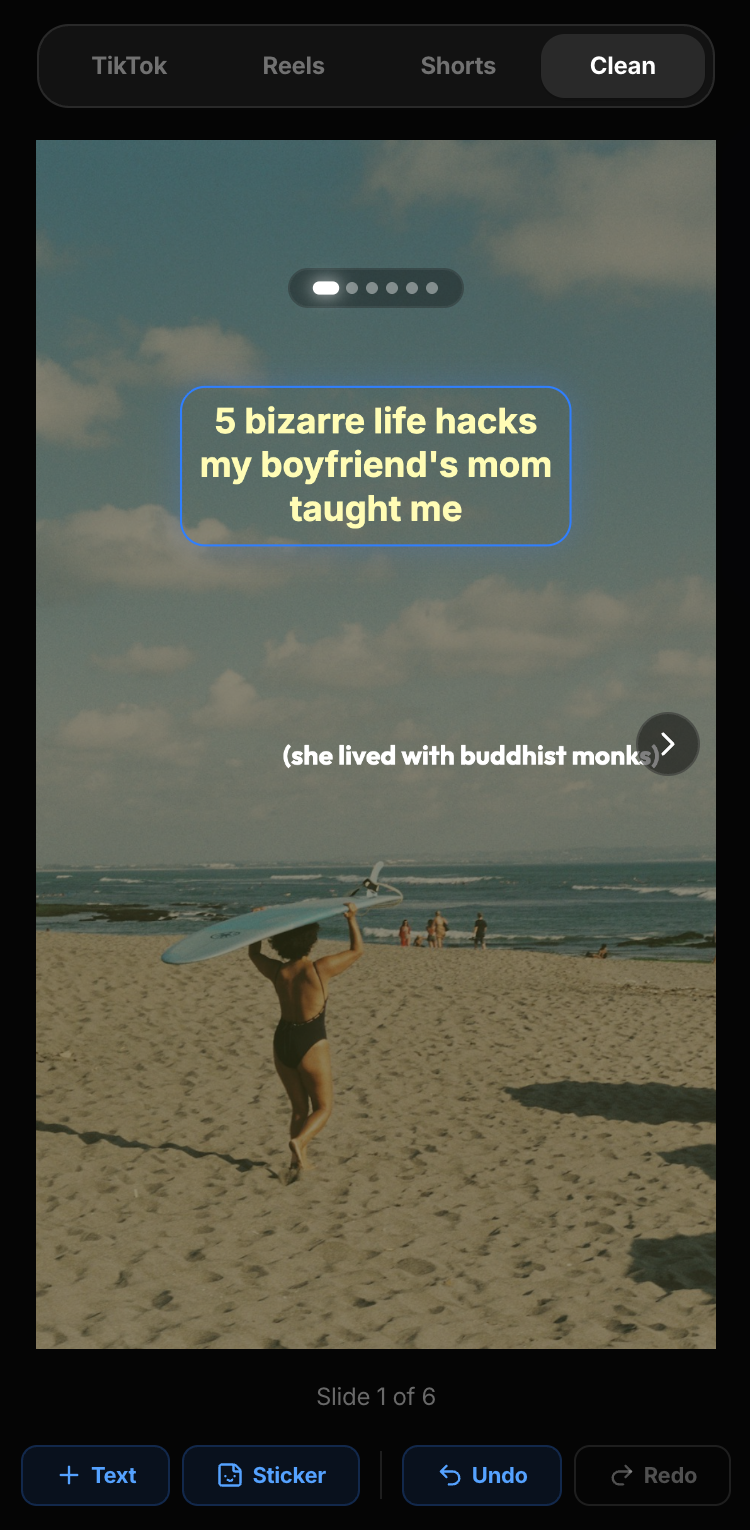
4. Add text overlays
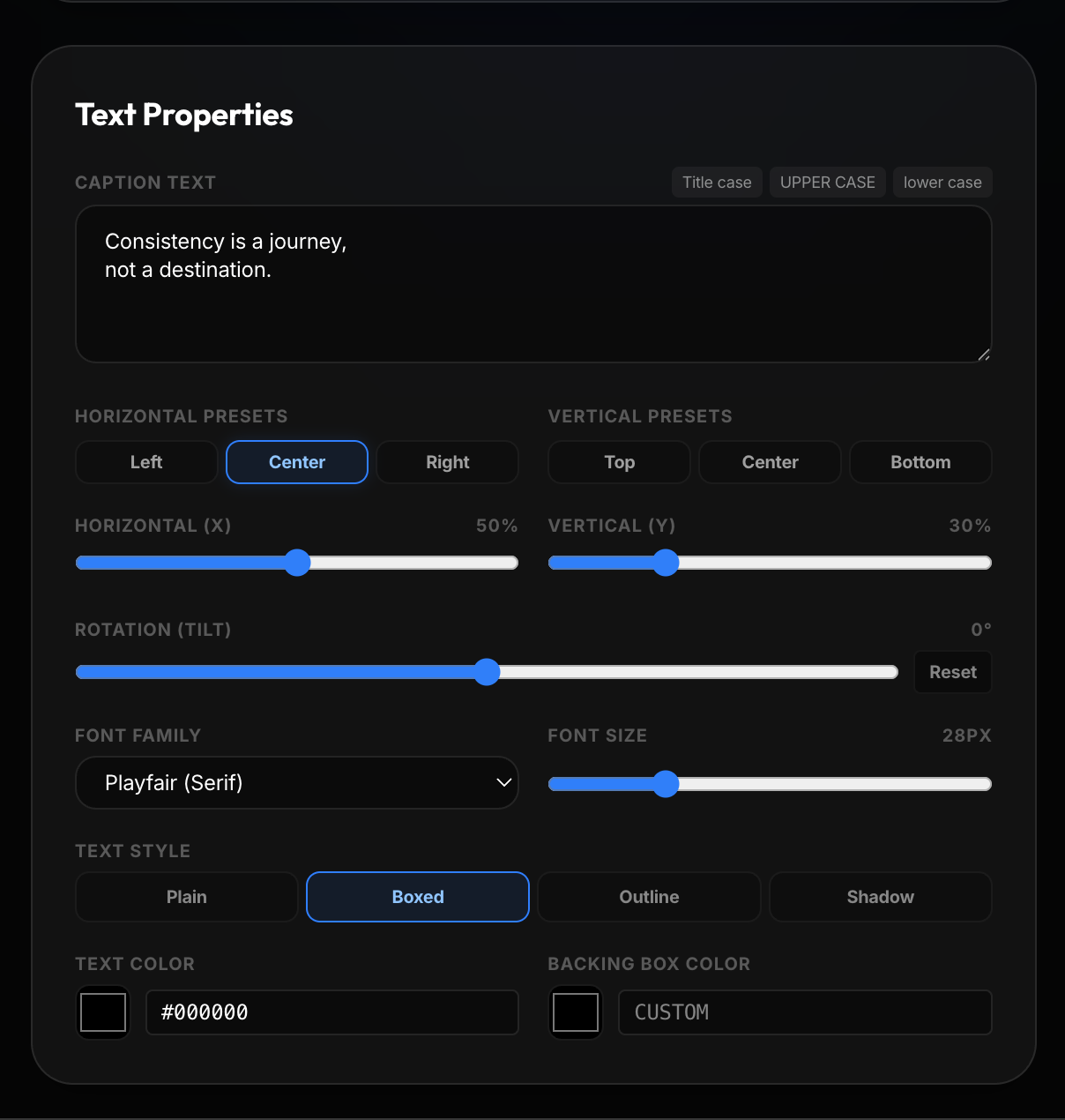
This is the step TikTok's native editor handles badly and PXT is built for. Add a text overlay to any slide and choose from five clean font styles:
- Outfit (modern sans)
- Inter (clean and neutral)
- Playfair (elegant serif)
- Courier (mono)
- Caveat (handwritten)
Position text precisely, keep it inside the safe zone away from TikTok's right-edge buttons, and reuse the same style across every slide so the whole carousel looks like one designed set — not ten slides made by hand.
5. Use the AI slide outliner
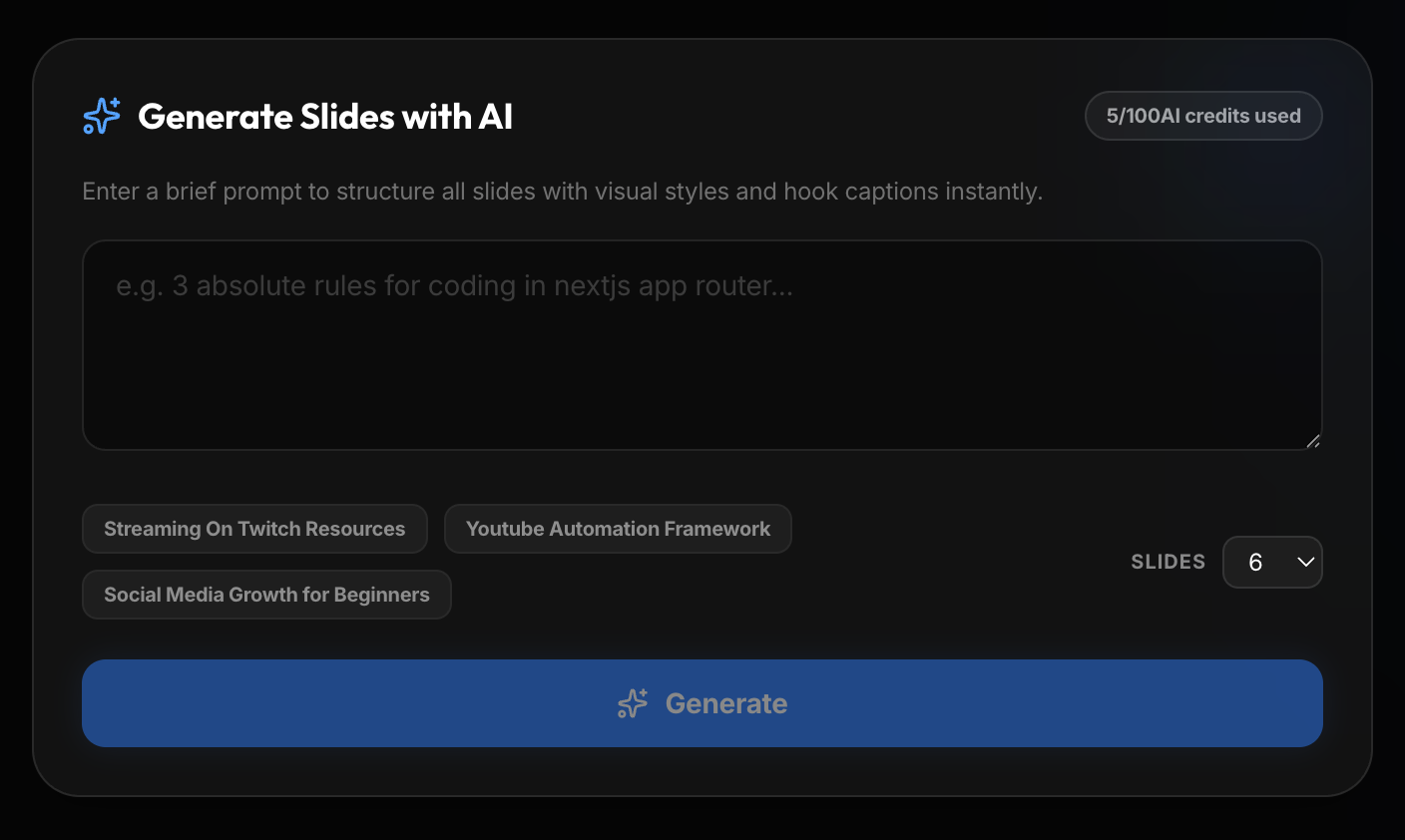
Staring at a blank carousel is the real reason most people never start. The AI slide outliner turns a single prompt — like "5 beginner mistakes in food photography" — into a full slide-by-slide structure in seconds: a hook slide, a content slide for each point, and a closing CTA. Edit the wording, set each slide's backdrop from Unsplash or a URL, and the hardest part is already done.
6. Publish to TikTok or download
When the carousel is ready, you have two paths:
- Publish directly to TikTok. Connect your TikTok account once and post your finished carousel straight from PXT — no exporting, no re-uploading.
- Download the images. Export the whole carousel as a ZIP of 9:16 images, then upload them through TikTok's Photo tab (or reuse them as an Instagram carousel or YouTube Short).
Both get you the same clean, designed slides. Direct publishing is just faster.
Uploading manually? Export the ZIP, then follow the native app flow in how to post a photo carousel on TikTok — that guide walks through the TikTok Photo tab, slide order, cover selection, and captions in full.
Best practices for viral TikTok carousels
The build is only half of it. These are the habits that separate carousels that spread from carousels that stall.
Put everything into slide 1
Slide one is your thumbnail and your hook — the only slide most people see before deciding to swipe. Make it a bold statement, a "things nobody tells you about X," or a promise the rest of the carousel pays off. If slide one doesn't create a knowledge gap, nothing after it matters.
Keep text minimal
One idea per slide. A few words, not a paragraph. Carousels are skimmed at swipe speed, so dense text kills momentum. If a slide needs a lot of explaining, split it into two.
Create a swipe loop
End each slide slightly mid-thought so the viewer has to swipe to close the loop. "Here's the first fix… →" pulls people to the next slide far better than a slide that neatly resolves on its own.
Stay consistent
Same fonts, same colors, same layout across every slide. Consistency is what makes a carousel look designed rather than assembled — and it's what makes your posts recognizable when someone sees a second one.
End with a clear CTA
The last slide should ask for exactly one thing: a save ("Save this for later"), a comment ("Which tip helped most?"), or a click ("Full guide in bio"). Saves and comments spike when you explicitly ask — most creators simply forget to.
TikTok carousel ideas that reliably work
If you're not sure what to make, these five formats earn saves across almost every niche because each one rewards swiping and gives viewers a reason to come back:
- The listicle. "7 [things] every [audience] should know." One point per slide, numbered. Predictable, skimmable, and endlessly repeatable as a series.
- The mistake breakdown. "5 mistakes killing your [result]." People swipe to check whether they're making them — and save it to fix later.
- The before/after. Slide one shows the "before," the following slides walk through the change, the last shows the result. Transformation content over-indexes on shares.
- The mini-tutorial. A single skill broken into steps, one step per slide. This is the most saved format of all, because a save is how people bookmark the how-to.
- The myth vs. reality. "You think X. Actually Y." Each slide flips an assumption, creating exactly the knowledge gap that keeps thumbs swiping.
Pick one format, build a template around it once, and you can turn out a new carousel every week without redesigning from scratch — which is the entire point of working in a dedicated maker instead of the app.
A worked example: from prompt to post
Here's the whole workflow start to finish, so you can see how fast it moves once the pieces are in place.
Say you run a home-cooking account and want a carousel on weeknight dinner shortcuts. In PXT you open the editor, type a prompt into the AI slide outliner — "6 weeknight dinner shortcuts for busy people" — and it returns a structure in seconds: a hook slide ("6 dinner shortcuts that save me an hour"), one slide per shortcut, and a closing CTA slide.
You give each slide a backdrop — search Unsplash for food shots right in the editor, or paste in image URLs — one per slide. You add a text overlay to each — the shortcut in a few words — using the Outfit font at a consistent size and position so all six slides match. On the hook slide you bump the text size up so it reads as a thumbnail. On the last slide you write "Save this for your next grocery run 🛒" and add "More at [your handle]."
Then you connect TikTok and publish — or download the ZIP and upload through the Photo tab if you'd rather write the caption in the app. Total time once you've done it once: about ten minutes. Compare that to rebuilding the same thing slide by slide in Canva and re-exporting each image, and the reason creators switch to a purpose-built carousel maker gets obvious fast.
The first carousel takes the longest because you're learning the tool. By the third, you have a template, a font style you like, and a rhythm — and you're posting save-worthy carousels faster than most people can film a single video.
Quick design checklist before you export
- Every slide is designed at 9:16 (1080 × 1920 px) — full breakdown in the TikTok, Reels & Shorts size guide
- Carousel is 6–10 slides with a strong hook on slide one
- Text is minimal and sits inside the safe zone
- Fonts and colors are consistent across all slides
- Last slide has one clear CTA (save, comment, or click)
Hit those and your carousel will read like it belongs on an established creator account, not a first attempt. Once the design is done, how to post a photo carousel on TikTok covers publishing it. Still have questions about formats or sizing? The PXT FAQ has the details.
Two of the checklist items have short answers of their own: how many slides a carousel should have on the 6–10 range and why it holds, and why your slide text is getting cut off on the safe zone. If you're building your first one in PXT, how to create your first carousel walks through the editor step by step.
The bottom line
Making a great TikTok carousel comes down to designing your slides properly before they ever touch the app: a 9:16 canvas, a hook that earns the first swipe, minimal consistent text, and a CTA that asks for the save. TikTok's native editor can't do that well — which is exactly why designing first, then publishing, is the workflow that works.
Ready to make yours? Create your first carousel free with PXT Creator Studio — AI-outlined slides, 9:16 templates, and one-click TikTok publishing. No credit card required.